Re-Register all DLL’s to fix “No such interface supported” error in windows 7 after installing IE7 Standalone
Disclaimer: All care No Responsibility. you follow the instructions provided at your own risk. I take no responsibility any damage you may cause. Please read the article in full before starting
To test some website stuff I tried to install IE7 on my windows 7 machine. now I cant run explorer for browsing files or accessing control panel and the like. I found an old guide for re-registering all your dll’s that I thought was quite nifty so I thought I woukld re-share it with you. (up-dated from windows 98)
The original instructions basically get you to dump all DLL files into notepad, then do a find and replace to regsvr32 them all. if you do it from c:\ like it suggests, you might get more than you need. including dll files from the recycle bin.
this fixed my problem. and I think its worth trying this way before doing it for every file on your computer.
I am going to assume your windows installation is on C:\ and in C:\ windows
1. open command promt as an administrator (You may need to find it in accessories, right click it and run as administrator if you are having issues with security rights)
2. type
CD C:\WINDOWS
(and C:\ if you werent on that drive by default)
3. type Dir *.dll /s /b > c:\regdll.bat
This will search for all dll files within c:\windows (including /subdirectories) and output them (in /bare format) into a text file on the c:\ called regdll.bat
you cant run it just yet because its just a list of files, we need to change it so that its actually got a command. open the file in your prefered text editor (notepad) and do a replace on c:\ , replacing it with Regsvr32.exe /s c:\
This is what your file should look like.
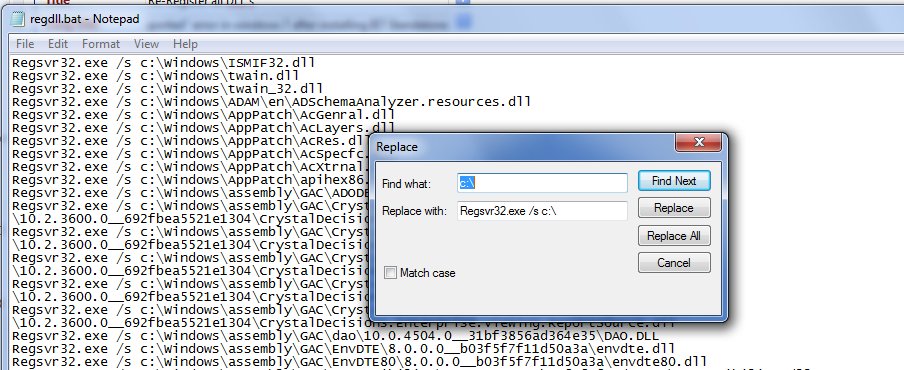
Now. before trying to run the file. I highly recommend you scrolldown until you find $patchcache$ and WinSXS folders and deleting all the references to the files within those directories in the file. (dont delete them off your computer) Leaving them in will excruciatingly increase the time to do this and very likely stuff lots up. Also John Crenshaw mentions: You probably also want to delete any lines for the temp folder, if any, since registering a DLL that may not exist later is probably not an awesome idea.
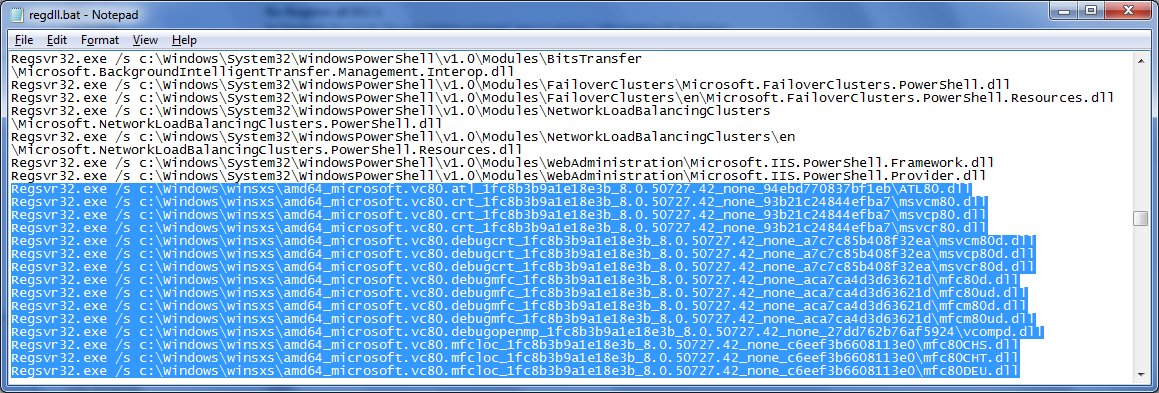
Once this is done. Save the file and run it. If you still have your command prompt as administrator open, just type c:\regdll.bat
This will register all dll files in c:\windows and subdirectories. This will take some time, (Potentially, also register files that would not normally be registered by default, (like files in $patchcache$ and other windows directories if you did not remove them). It worked for me and I dont need to do a reinstall 🙂
You will get errors. just click ok.
It was healpfull. I found lots of sites with similiar content. Probably this problem do not involve only instaling IE7. After i installed my win7 x64 i removed IE from my system and deleted all folders in Program Files (and in (x86)) and never installed any patch for IE or newer IE.
This bug simply somehow appeard and i didn’t noticed when (i wanted to change theam of my desktop and RMB on it -> “Personalize” -> No souch interface blabla error).
Few bugs in article: missing “\” after c:
Some addidional advices: If someone is using 64-bit version of win7 i recomend to delete most entries with “System32”, not including “driver” in name. 64-bit system do not usually use 32-bit .dll so why bother.
.NET Framework .dll’s could be excluded too, becouse there are lot of them and 100% don’t couse this error.
But overall great article, hope that people on msdn forums would give souch advices, not something like: go back to restor point or some other useless advices not resolving problem.
I’m from Brazil, you saved my files and my life.
Thank you very much!
It really does work EXPLORER.EXE is now fine….. just be sure to check that you do the replace in the file 😛 I almost skipped that part
yep.. saved my ass 😉
“Emulating” IE7 (+ 8) can be done via the developer tools.
thanks mate.
Thank you very much!!!!
Thanks
It was really helpful
Thank you mate. It was really really helpful.
Thanks a lot…it worked thnxxx
Thank you soo much it worked perfectly!
Thanks a bunch. You really save my time .
Issue resolved
Ie 9 release, Windows 7 Ultimate
After installing 9 I got the error stated above, your fix did the trick. Thanks A Bunch
my BAT is running now.. Fingers crossed….
Great job!
I tried several solutions like here:
http://social.technet.microsoft.com/Forums/en-US/w7itproui/thread/99e4ab4f-165d-4691-90dd-ab41a05d26a2/
or this: http://www.blogduell.de/windows-7-und-internet-explorer-7/
but your`s was the only working way!
THX a lot!!!
Thanks. It worked !!! That’s really good, saved alot of time.
Excellent. It’s working. Thank you a lot. This is lifesaving…lol!
johns w.
I was having the same issues as everyone and this method has resolved the problem. Thanks!
hey, i have that problem but in my computer appear that is not exists! So what else i can do?
Just wanted to post a quick “thank you!” – this little tutorial saved my ass. Thanks!
Dude, you rock. This worked great! Thanks!
IT WORKED!!!!!!!!!!!!!!!!!!!!!
THANK YOU – THANK YOU – THANK YOU!
Am always in awe of those that give their time and knowledge to help others with computer problems
Thanks for this solution. Too bad MS doesn’t have one 🙂
It’s a bit draconic, but great find!
works like magic!!!!!!! great job mate!
excellent
Thank you! 🙂 It worked like a charm.
after type Dir *.dll /s /b > c:\regdll.bat
and must wait regdll.bat – notepad open right?
why my notepad not open?
sorry what?
I followed the directions and the file ran but stopped when it hit MaxxAudioRealtek2.dll and has been there for close to 45 minutes. Should I assume that there is an issue?
THANK YOU VERY MUCH I LOVE YOU ….
oh god i was so worried
but chars to you 🙂
You are a lifesaver dude! Many thanks!
when I typed Dir *.dll /s /b > c:\regdll.bat
AND
Dir .dll /s /b > c:\regdll.bat
it said:”file not foumd”
Thanks a lot! You have deserved a cold beer in Serbia! 🙂
are you doing this in the directory with the dll files?
Hi there,
I rarely left a comment in a blog post, but this article saved my day. There is a lot of similar tutorial out there in the internet, but I find this article is the easiest to read and follow.
Again, thanks!
Rangga
Should have not inform them to delete all the files in the directory:
“$patchcache$ and WinSXS folders and deleting all the files in there”.
I dont ask people to delete the files, just remove them from the text file. But I can see how some might misunderstand. I have changed the wording.
Cheers
Nice blog by the way.
TO ALL: For the info 😛
Regards,
John Angelo
Fantastic info. Thanks very much.
Really worked. It solved two issues one was “No such interface supported†and second was that I could not open my computer’s properties with right mouse click
Excellent post. Your efforts are really appreciated. I thought of re-installing my Windows 7. You saved my time. Great job again.
Great post. Keep Up the great work..!!!!!!!
Thanx m8
I am kinda new at this stuff -so would you mind emailing me (embarrasing) and giving just a little more detail..if not, that is ok too…That is if I can get to my email…….thanks, Jackie
Thanks a lot bro 🙂
Whilst this might work, it does not give you the opportunity to remove the $patchcache$ and WinSXS dll files which you DON’T want to register
Thanks pyrocam for all this! Unfortunately, didn’t seem to work for me. I noticed you seemed more emphatic in previous post regarding: “$patchcache$ and WinSXS dll files which you DON’T want to register.” I DID NOT remove those from text file (probably why it took so long to run). SHOULD I REMOVE THEM AND TRY AGAIN? If so, please forgive my amateur question, but how can I remove many lines in text file without painfully slow scrolling? Thanks!
It’s worth trying
to select large areas you can use shift + pagedown, or left click at the start, move the scrollbar to where it ends, hold shift and left click where it ends.
Good luck
me 2 please coz I don’t get it though I follow da instrutions… pls in real trouble here…the email is xxxxxxxxxxxxxxxxx
These instructions are epic. You probably also want to delete any lines for the temp folder, if any, since registering a DLL that may not exist later is probably not an awesome idea.
Sorry this is not something I have time to do. also you probably shouldnt post your email address in comments unless you want to receive spam 🙂
Good call
KICK ASS!!!!! Thanks a bunch
this saved me!!!! thnx nyway nd thnx charle
System can not find ‘dir .. error came
THAAANK YOOU SOO MUUUCH! i had been without explorer and control panel and a few other features/programs because i accidently deleted some system files on regedit :l that was never a good idea. But after this, which was really simple (seriously im 14 and no good with this area of computers) and i got it all back! thanks again!
HI
MY NAME IS SHAHIN NAJAFI FROM IRAN TNX FOR HELP 🙂
Thank you 1000 times, saved my Work laptop from format. was trying to installed that IE7 standalone for testing and it messed up my entire laptop. thank you!
When i ran the regdll.bat file on cmd(Which is running in admin mode) the first dll in regdll.bat that is c:\windows\twain.dll is running for the last 10 hrs. please help me overcome this issue.
that’s not right, the whole process should take less than 10mins. make sure there are no errors popping up that are hidden behind another window. If there is nothing take out twain and retry. It wont be required to fix it anyway
Pyrocam and Charles, thank you very much for the clearly explained and easy to follow advice. This saved me from an almost imminent re-install. It’s a shame that M$ are unable to offer anything other than “Restore Point” or “Re-install”. Thanks again – peace friends
Update. This worked until I restarted, then windows appeared to load but all that was displayed was a black screen and just the cursor. The same with safe mode. All I could do was repair mode and restore back to before the re-registering. I will try again but only doing the dlls one folder at a time unless anyone else can let me know which dlls were affected by installing ie7 standalone. Appreciate any help offered. – peace
I haven’t heard of that happening, are you removing the winsxs and patchcache folders ?
Yes, I removed both winsxs and $patchcache$ references in the regdll.bat file. I’ve since searched for more info and have seen the same issue posted elsewhere but with no solution. So after plenty of searching I came across this site: http://iefaq.info/index.php?action=artikel&cat=48&id=133&artlang=en I downloaded and used the file ie8-rereg.64on64.cmd that was in the .zip (it’s been updated to include ie9) and now my issue is solved. Looking at the contents of the file, it’s only a few dlls that need re-registering. Hopefully this will help others. Peace
I believe you can do something like:
for %i IN (dir /s /b *.dll) DO (regsvr32 /s %i)
You can but this doesnt ignore the patchcache or winsxs folders so I’d highly recommend NOT doing this.
Wow! Nothing was working properly before I tried this. Thank you, saved my ass. 😀
threat yang sangat membantu saya…
these threat so helping me.i have a problem when i remove my ie7.i using win7.then problem start coming.i cant play mp4 on wmp,i cant open personalise properties,firewall properties,even my tcp ipv4 properties! but when i tried this way,it all solved.thanks a lot bro…sry for my poor english
Although many people said this Batch file execution method helped them, for me it did not work at all. I use a Sony Laptop and the last time I did a maintenance with “VAIO care” I faced this same probelm. no exe file could be executed by dbl-clicking on it. and no start-up program loaded either. no shortcut could be opened. I felt I had gone back to stone age! I think the reason for my problem was that I had hibernated my computer for several days and never did a restart. So, The solution was very simple. I restarted the in “Safe mode with command prompt” and used MS DOS prompt to get to VAIOcare.exe and run it. It was fine and I did a roll-back on the registery cleaner restore point, then restarted windows. all problems solved.
in the name of god
i am from iran.
thank you very much.
my problem solved with this help.
Really helpful and informative. I was actually looking for similar topics, thank goodness I was able to get a hold of your post here. Thank you.
I tried to do this .. but when registering dll … it gave me an error
“The instructio at 0x77be11b8 referenced memeory at 0x0000004a. The memory could not be read.
Click Ok to terminate the program.”
I click OK button but doesn’t close or do anything …. I closed it but didn’t work for me. 🙁
i wish some one would write this tutorial in english instead of gobblelygoup.
we are not all advanced users !!!!!!!!!!! hence why myself and others here can not follow the instructions and why we still have the initial problem that brought us here.
TOTAL JOKE !!
thank you very much, you saved my c*** :))
Oh plz u gotta help me when i write the second command it tells me access denied . plz dude what to do
It was really helpfull thanks!
BIG Thanksssssssssss
YAAAAAAH MAN ITS WORKS : )))
Thank you very much,
u saved my life,
Worked for me 🙂
Thanks!!
Thank you. works perfectly
Alas, after re-registering the dlls all is fine until I reboot. Then I’m left with the black screen of death and just the white mouse pointer.
I can solve that with a system restore but that means reverting back to my previous problem pre registered.
Any ideas?
Try VoorHees’s idea. I haven’t tested it myself but no harm in trying. I can only expect that its not working due to registering more files that shouldn’t be registered.
You could try voorhees’s idea (above) but I havent tested. I would guess your problem is to do with more files being registered than should be
This justr happened to me second time with windows 7 ultimate, Its the second time I ran this command and Now I stuck with Black Screen of death and mouse cursor again, WHY WHY WHY I forgot that it did this last time, and I had a problem where local security policy would not open it said an attempt was made to reference a token that does not exist, tmicropsoft says to run this command and wallaw reboot to damn black screen white cursor again, no safe mode work, No repair work, I have to go back to my Backup[ ISO from month ago and Lose all of last month DAMMIT!
YES YES YES…AMAZING THANKS A LOT
I wrote all this down but I’m not a computer anything, so please walk me thru this it sounds like what I need to fix my problem.
Thank you very much for your instructions.It perfectly worked for me.I saved my all files.
i tried but after i writing the second command nothin appears no notepad no error….etc… i would be grtfull if u cn help me solve th problem.. 🙂
Thank you so much! I’ve been looking everywhere for a solution after that botched IE7 install attempt.
Thanks, that worked!
do i need to restart machnine before the desired effect takes place? PLEASE HELP ASAP by answering…. thans+++
I do not remember. But why not try and find out?
Thanks for this post, i will try that.
Man you have saved my life
Thanx a lot
file not found:( why!!!???
tnx you are god! you save my life.
Thank you so much. You saved me a lot of time, I’m planning to reinstall my OS…
thanks alot
its worked for me
THANKS FOR ALL HEPS
you are the man! thank you sir, you saved me a boatload of time, grief, and many other terrible unnecessary experiences. The only thing I had some issues with was that regsvr32 kept crashing. It would immediately come back up, but I am guessing this could be solved by setting the “buffer” command in the batch file. Thanks for sharing, God bless!
Excellent. Worked perfectly, didn’t even need a restart!
For editing the .bat file I highly recommend Notepad++ instead of notepad
🙂
I agree!
It worked!! Now, URL files are not working, and I can’t access my favorite links. Anyone knows how to fix it?
umm when u said to delete winsxs did u mean delete that from that notepad or the folders?
Hi Doni, from notepad. (dont delete them off your computer)
Thank you! I have been trying every suggestion for months on end. Finally, I can “open containing folder” from downloads in Firefox without getting the dreaded “interface not registered”!
Thanks! It worked well for me!!
Life saver, thank you so much for posting this, helped me with 2 business related websites, and was beginning to drive me nuts.
many thanks
I’d like to find out more? I’d want to find out more details.
Thank you so much!!
My system got a new life only because of you.
ths, this is my issue.
I have the same problem, but using 64 bit Windows 7 and IE11.
So what is my fix?
THanks
Yo Boss, Word! That sheet worked like a fly paper on fiery Texas day!
That awesome.
Thanks you.
Holy shit it worked perfectly. As soon as it was dobe i was able to launch explorer.exe and now everything eorks fine again. Cant thank you enough, wow you really made my day thanks!!!
IT WORKS!! THANK YOU!!
This MAN IS BRILLIANT !!!!! Thank You
Thank you sincerely. It works.
So i did everything you said down to the t, let it run and even restarted before i tried everything just to be sure. Still have the no such interface supported error. Ive used AVG pc tuneup to defragment and clean my registry prior to that as well. After i tried what the original .bat file i used reza’s shorter list for a .bat file as well and it still did not work. What am i to do!!!!!!!!!!!!!!!!!!!!!!!!
Thank dude this help a lot. XD
It didn’t work for me. I tried to run
gpresult /h gpreport and I still get
ERROR: No such interface supported
Thank you so much for this. I have win7 64 bit and I have tried at least 10 other things to attempt to fix this problem. This FINALLY worked for me, I am so grateful. I had to tweak where I saved the file that gets created because I could not access it to edit it while it was saved in c:\ cus explorer was broken (whole reason I needed the fix) so I had to edit the place the file gets saved to my desktop c:\users\me\destop\regdll.bat then I could open and edit it.. also when I tried to save it in JUST c: I had to make sure I ran notepad as administrator or it would not save.
if others have same issue maybe this will help.
Thank you so much.
sorry…did not work for me… even though I had a bloody hard time pressing a key everytime the dll files were processed… it went on for an hour….and after I reboot…. still that fu*$ing error of “Class not registered”… cannot open the bloody directory where I downloaded the file….. :(((((((
Someone else wrote Dir *.dll /s /b > c:\re-regdll.bat Yet yours wrote Dir *.dll /s /b > c:\regdll.bat Therefore I was a success
I hope this still receives answers… I accidentally deleted a couple of files in error. I was very tired and now I cant open files. The file is the actxprxy from 32 folder, still have the 64. I cant find anywhere to replace them myself. I thought this tool might work. Trouble is I must have the txt open to desktop as I cant open ANY folders….
Will not work with 64bit?