(update 2016-06-08 This has been tested with Outlook 2016 and seems to work!)
I was asked how a user could manually run all or a single rule, without having to use the outlook rules dialog box. here is how you do it.
First, go into the VB Editor, Tools -> Macro’s > Visual Basic Editor (or press ALT-F11)
assuming you dont already have any modules in here. Press Insert -> Module
you will be presented with a new window waiting for code, paste this in for all rules:
Sub RunAllInboxRules()
Dim st As Outlook.Store
Dim myRules As Outlook.Rules
Dim rl As Outlook.Rule
Dim count As Integer
Dim ruleList As String
‘On Error Resume Next’ get default store (where rules live)
Set st = Application.Session.DefaultStore
‘ get rules
Set myRules = st.GetRules
‘ iterate all the rules
For Each rl In myRules
‘ determine if it’s an Inbox rule
If rl.RuleType = olRuleReceive Then
‘ if so, run it
rl.Execute ShowProgress:=True
count = count + 1
ruleList = ruleList & vbCrLf & rl.Name
End If
Next
‘ tell the user what you did
ruleList = “These rules were executed against the Inbox: ” & vbCrLf & ruleList
MsgBox ruleList, vbInformation, “Macro: RunAllInboxRules”
Set rl = Nothing
Set st = Nothing
Set myRules = Nothing
End Sub
______________________________________________________________________________________________________________________________
and this for a single rule, dont forget to change rulename
___________________________________________________________________________________________________________________________________
Sub RunAllInboxRules()
Dim st As Outlook.Store
Dim myRules As Outlook.Rules
Dim rl As Outlook.Rule
Dim runrule As String
dim rulename as string
Rulename = “*****name of rule*****”
Set st = Application.Session.DefaultStore
Set myRules = st.GetRules
For Each rl In myRules
If rl.RuleType = olRuleReceive Then
If rl.Name = rulename Then
rl.Execute ShowProgress:=True
runrule = rl.Name
End If
End If
Next
ruleList = “This rule was executed against the Inbox:” & vbCrLf & runrule
MsgBox ruleList, vbInformation, “Macro: RunAllInboxRules”
Set rl = Nothing
Set st = Nothing
Set myRules = Nothing
End Sub
NB: if it doesnt work at first, as per this comment you may want to try replacing the “s with your own. It’s possible they are lost in translation.
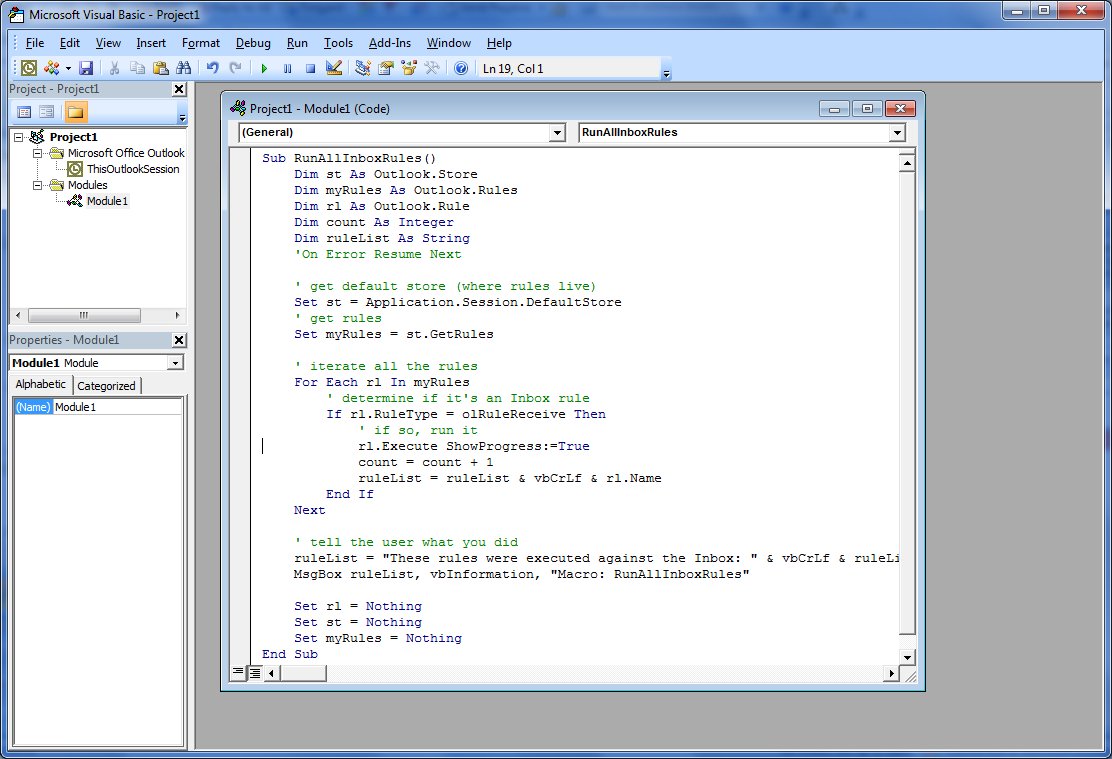 This will create a new macro that runs all the rules one by one in against your inbox.
Now create a button, goto View -> Tool bars -> Customize
go into the Toolbars Tab, and click New, call it what you want. I called mine “Rules”
The toolbar will be created floating, you can drag this now where you want it in the client. or leave it alone for now.
then go into the Commands Tab, scroll down to Macro’s on the left hand side, you should see Project1.Runallinboxrules in there. drag that up to the new toolbar and release it. This will make a new icon to the macro.
you can right click the icon to customize it. To bring it inline with the rest of the toolbars, I set mine to ‘Default Style’
Then you can close the Toolbar config window. and test it out. it will tell you which rules were run when it finishes

Note: This article uses code that was probably taken from this page http://www.outlookcode.com/codedetail.aspx?id=1266
UPDATE 2016 version
I have tested this as is on outlook 2016 and it worked AS IS. 🙂
Just what I was looking for, thanks!
the single rule name macro doesn’t work..
the all rules macro does..
really trying to find the single one for one specific rule
Hi There, this definately does work, if you are having issues you could try replacing the line
If rl.Name = rulename Then
with
If rl.Name = “your rule name” Then
I am getting a debug on this line…
Set myRules = st.GetRules
Is there a particular reference that needs to be checked in the Tools | References… menu?
No references required.
have you got some rules setup? what version of office are you using? what is the error message?
Hi John! I worked out the problem by setting my Macros security level to low.
Windows 7, Outlook 2010
Run-time error ‘-2147352567 (80020009)’:
This store does not support rules. Could not complete the operation.
sounds like it cant logon to the store properly, are you running it from within outlook, or an external script?
you could try starting outlook in safe mode (start , run, ‘outlook.exe /safe’ ) and running it, to see if its an addon thats causing the issue.
GREAT !!! this is exactly the shortcut that I was looking for.
Thanks.
How can I apply this macro to execute on a pst file (let’s say mySpecificeMails.pst) instead of inbox folder?
I get compile errors when running the rules macro: user defined type not allowed. Are there files I need to include and how do I include them?
There are no files or references required, what line is highlighted when it gives the error?
The all rules one worked for me after I changed the ‘ but it only runs rules from my Exchange account, not the account I am in or all accounts.
To clarify, I’m connected to Exchange and 2 IMAP accounts. The run all rules script runs the exchange rules but not the IMAP account, regardless of which account folder I’m in. Using Win 7 Pro 64, Office 2010.
Very useful, thank you!
Got the same error as John…
Windows 7, Outlook 2010
Run-time error ‘-2147352567 (80020009)’:
This store does not support rules. Could not complete the operation.
The debuger highlights the following line:
Set myRules = st.GetRules
I also had the same problem as john. When I tried to run in safe mode no macros could be run.
Same 0x80020009 error here on an IMAP setup – looks like the default store is “Personal Folders” which is the .pst Outlook created, instead of “Account@EmailProvider.com” which is the IMAP default store. I’ve not yet been able to get the macro to point to the IMAP store though 🙁
Hi, Got a question trying to use your script to disable only one rule. But this isn;t working, I’m complete new to this, so hope you can help. Underneath is hat I tried. Thanks in advance.
Rob
———-
If rl.Name = rulename Then
rl.Enabled = False
‘rl.Execute ShowProgress:=True
‘runrule = rl.Name
End If
Is it possible to designate more than one (but not all) rules with this method? I’m a non-coder, but i follow instructions REAL well.
Any solution for the 0x90020009 error with an IMAP setup? Outlook 2010 can sync with a gmail account, but neither the All Rules or Single Rule macros will run. They both work fine when I use them on my work account since that uses Exchange Server.
It’s working perfectly! However, I’d like to run this only on “Read” messages. Any ideas? Thank you!
Worked like a charm. To the guy in the comment above me, you have your execution of the rule commented out! ‘ turns the line into a comment and it doesn’t execute 😉
I put the e-mails I have answered into a DONE subfolder and then use my rules on the DONE folder.
Is there any way this code can be adapted sot hat all of my rules in the Rules Wizard run on the subfolder and not the Inbox?
Hello – I’d like to use this process to archive my sent e-mail items. I have a rule that does this, but when I create the VB routine and button as above, it does not archive the sent e-mails. I don’t get an error, but it doesn’t work. Is the routine above someone specific to to Inbox (as opposed to the Sent folder)? Thanks
Thanks!
Ditto on #28’s question. Can this macro be modifed to run ALL rules rather than just INBOX rules? I tried modifying the inbox condition:
‘ iterate all the rules
For Each rl In myRules
‘ determine if it’s an Inbox rule
‘If rl.RuleType = olRuleReceive Then
‘ if so, run it
rl.Execute ShowProgress:=True
count = count + 1
ruleList = ruleList & vbCrLf & rl.Name
‘End If
Next
… but it still doesn’t work on SENT rules.
I found a solution to the Outlook 2010 error “This store does not support rules. Could not complete the operation”.
Change
Set st = Application.Session.DefaultStore
To
Set st = Application.Session.Stores(1)
Seems to work for me. Here’s all my code:
Sub RunAllInboxRules()
Dim st As Outlook.Store
Dim myRules As Outlook.Rules
Dim rl As Outlook.Rule
Dim count As Integer
Dim ruleList As String
‘ On Error Resume Next
‘ get default store (where rules live)
Set st = Application.Session.Stores(1)
‘ get rules
Set myRules = st.GetRules
‘ iterate all the rules
For Each rl In myRules
‘ determine if it’s an Inbox rule
If rl.RuleType = olRuleReceive Then
‘ if so, run it
rl.Execute ShowProgress:=True
count = count + 1
ruleList = ruleList & vbCrLf & rl.Name
End If
Next
‘ tell the user what you did
ruleList = “These rules were executed against the Inbox: ” & vbCrLf & ruleList
MsgBox ruleList, vbInformation, “Macro: RunAllInboxRules”
Set rl = Nothing
Set st = Nothing
Set myRules = Nothing
End Sub
Outlook 2010
I still seems to be receiving the following error:
“This store does not support rules. Could not complete the operationâ€.
With the following change in place:
Set st = Application.Session.DefaultStore
To
Set st = Application.Session.Stores(1)
Any suggestions?
I Have multiple in boxes and this run on the my personal one but not on the server I need to run them manually can someone show me how to modify the code or where to modify it to make it work on all inbox I have access to ?
Thanks
BTW – Just tried the ‘RunAllRules’ module with Outlook 2013 Preview… seems to work well (a little slower than the native Run Rules Now (and selecting all) but does the job!
I use the Run All rules command frequently against my primary inbox, thank you.
I want to evolve it a bit and need some help. I want to run 5 specific rules against a shared inbox, attaching it to a macro. How do i get the code to run it against a specific folder?
Worked great! Exactly what I needed. Thanks!
This can be modified to run rules on the current folder you have selected by adding the second line below (1st & 3rd line for context)
Set myRules = st.GetRules
Set cf = Application.ActiveExplorer.CurrentFolder
For Each rl In myRules
then add Folder:=cf
as in:
rl.Execute ShowProgress:=True, Folder:=cf
This of course is very helpful to filter shared inboxes.
I found it was necessary to add the cf refinement to make this otherwise brilliant macro work.
Thanks, This works like a charm.
But how can I run this only for the unread mails in the selected folder? That would make things faster ya?
Cheers…!
Where do you add the :
Folder:=cf
in the original macro, I don’t understand the :
“as in:
rl.Execute ShowProgress:=True, Folder:=cf”
when I write that in after:
“For Each rl In myRules”
It does not run and gives me a run time error.
Here is the exact text:
Set myRules = st.GetRules
Set cf = Application.ActiveExplorer.CurrentFolder
‘ iterate all the rules
For Each rl In myRules
rl.Execute ShowProgress:=True, Folder:=cf
LOVE IT!!! I made a few tweaks for what I needed but couldn’t have done it from scratch. Thanks so much for sharing.
replace the `’s so they go green, or just remove the line entirely
don’t forget to replace all the speech-marks 🙂
Thats my solution:
Sub Uruchamianie_regul_outlooka()
Dim r As Rule, a As Store, ns As NameSpace, f As Folder
Set f = Application.ActiveExplorer.CurrentFolder
Set ns = Application.Session
For Each a In ns.Stores
DoEvents
On Error Resume Next
For Each r In a.GetRules
‘Debug.Print r.Name
If r.Name = “name_of_rule” Then _
r.Execute ShowProgress:=True, Folder:=f
Next
Next a
Set ns = Nothing
Set f = Nothing
End Sub
regards: MVP OShon
Thanks! Made my mail administration so much easier. Funny that such toolbar shortcut is not default in Outlook.
Anyone know the solution to connect shortcut keys to run this macro. Eg ctrl+1
Hi…
Just found your site after looking for this very type of code. It runs flawlessly (no errors) and prints out each rule I have, however it does not actually execute the rules. Office 365 2013 Outlook. Any ideas? Thanks.
…RW
Never mind. I had the wrong Inbox selected when running the script. Works great! Thanks.
This is exactly what I’m looking to create, but it doesn’t seem to work. After going through your instructions, and running the rule, I get an error box:
Microsoft Visual Basic
Compile error:
Syntax error
OK or Help
and the first line of the code “Sub RunAllInboxRules()” get’s highlighted in yellow.
Any suggestions for fixing this?
Hi Jim, at a quess you need to replace the speechmarks. replace every ” you can find with your own “
Can I select folder other than Inbox to run the rule against?
I believe there are instructions for this in the comments
I see there are couple people asking this question, but no answer.
what about comment #37?
Perfect, thanks. I had to replace the ‘ not the ” but then it ran great.
Hi everybody!… I need to create a macro that backup all rules from outlook 2010 (client and server).
Any thoughts on this? Please
Thank you very much for the script. You noted in your instructions that the single quote may translate incorrectly…..that’s what happened to me. It came across as ` and I changed it to ‘
Works great and your detailed instructions were an exceptional example of good documentation. Again, many thanks.
Brilliant. I removed the two lines that open the dialog box at the end and still worked flawlessly.
Fantastic piece of coding, all very exciting, opens new doors for me, thank you
how can i schedule this macro to run on specific time to run
Outlook 2010, with multiple IMAP accounts.
I received the following error: “This store does not support rules. Could not complete the operationâ€.
With the following change in place:
Set st = Application.Session.DefaultStore
To
Set st = Application.Session.Stores(1)
it didn’t work. So I tried something new: a different number for the store:
Set st = Application.Session.Stores(2)… didnot work for me
Set st = Application.Session.Stores(3).
That worked for my default IMAP account. It is now running smooth !
Thanks for your post, I was struggling with this too and had already tried “Application.Session.Stores(1)” using Application.Session.Stores(2) worked for me.
Hi,
Is there a way to specify which set of rules per mailbox? I have 2 mailboxes, with different sets of rules and I only want to run the one mailboxes worth. Outlook 2013.
Thanks
Ben
i copied the code and had to do some tweaks like replace the ` with ‘ so everything looks the same now as in the picture , fyi when you copy the code from this page i had to tab the sentences so they line up just like in the picture. i am not big code guy so im learning. my problem now is with this piece of it:
Sub RunAllInboxRules() when i hit the run button or select compile i get a Compile error : sub or function not defined. i currently have a bunch of rules setup for 1 inbox that is connected to Exchange. I am using Outlook office 2007. here is what i have under module:
Sub RunAllInboxRules()
Dim st As Outlook.Store
Dim myRules As Outlook.Rules
Dim rl As Outlook.Rule
Dim count As Integer
Dim ruleList As String
‘On Error Resume Next
‘ get default store (where rules live)
Set st = Application.Session.DefaultStore
‘ get rules
Set myRules = st.GetRules
‘ iterate all the rules
For Each rl In myRules
‘ determine if it’s an Inbox rule
If rl.RuleType = olRuleReceive Then
‘ if so, run it
rl.Execute ShowProgress:=True
count = count + 1
ruleList = ruleList & vbCrLf & rl.Name
End If
Next
‘ tell the user what you did
ruleList = “These rules were executed against the Inbox: ” & vbCrLf & ruleList
MsgBox ruleList, vbInformation, “Macro: RunAllInboxRulesâ€
Set rl = Nothing
Set st = Nothing
Set myRules = Nothing
End Sub
Sorry Jeff I am no longer actively supporting this. I can’t see anything wrong with your code. Although just to confirm, the lines that start with ‘ are green (these are comments you can delete them and you replaced every ” with a your own ” right?
Is there any code outside of the sub …. end sub ? there shouldn’t be.
hello i need some assistance with the above. Thank you!!
please forgive i didnt see the 24hour approval. thanks
@#60
Replace:
If rl.Name = rulename Then
rl.Execute ShowProgress:=True, Folder:=cf
runrule = rl.Name
End If
With:
If rl.Name = “excluded rule name” Then
‘Do nothing
elseif rl.Name = “2nd excluded rule name” then
‘Do Nothing
‘You can continue adding them in this pattern
‘if you have more than two.
else
rl.Execute ShowProgress:=True, Folder:=cf
runrule = rl.Name
End If
I see this is no longer “actively” supported, but I am seeking to automate processing a select group of rules. I would like to create a new rule that upon execution will run a script or batch file that then executes said rules. Like so many others I get a lot of alerts and when away from my computer, it would be nice to move those out of the way so I can see more important messages.
The idea:
send myself an email with specific words to trigger batch or script to running the rules
have the rules process and my working inbox (not the default inbox) cleaned up by moving alert messages to their archive folder.
I am comfortable with batch files, but not scripting. I never got this working, but I added three lines to the script so that hopefully three rules would run (I saw the next hoping that would work). I have also tried naming the script *.vbs hoping I could fire it from explorer, but that did not work either. Some means of remote firing this would just be the bomb, but I would want to setup multiple variations so that I could run rules 1-3 and or 4-5. At this point I’d not need to run more than 5 rules, but of course if this was to work that could change.
Thanks to anyone willing to assist!
Robert
P.S. I LOVE the captcha replacement below! – I SO HATE those things as I constantly have to re-enter them!
OK, rather than having to manually (relatively speaking)
1) create a new macro for each rule;
2) create toolbar;
3) add each macro to the toolbar;
repeat 1 and 3 each time you add a new rule…
could some bright spark write a macro that scans all rules, creates a macro for each rule (using the one already provided here as a template), then (if the toolbar doesn’t exit) creating the toolbar and adding all the ‘rules macros’ to it?
Hopefully it can just add new rules macros if it’s re-run later, checking first which rules already have a macro for them (get list of rules, look for macros that reference them, probably have a standard name here! “apply_” for example), and only continue for the ones that don’t exist.
If its not possible to just pick out the ones that don’t exist, maybe it could drop all the ‘commands’ in the toolbar and re-create them all…
if necessary it could either:
After cleaning up the smart quotes and linking to the button, I’m getting this:
Run-time error ‘-1040973553 (c1f4010f)’:
Automation error
This is in Outlook 2007 and I can’t find any online references to this error 🙁
Don’t forget that googling with a hypen (minus) changes the search results
/kb/983265 although this doesn’t seem to match up with what your seeing. If you know how code works a little, try deleting blocks of code until you find the one that’s causing the issue.
Yes, I only searched for the error code, along with “automation error” and VBA and got nada.
The problem was with one of my rules, which somehow ran manually, but not in the macro. I added Print statements and logged the loop iterations, while moving rules around until I found it.
Phew. I’m gonna really like this one-click rule running. Thank you!
Hi thanks for this. Mine works but doesn’t actually FIND any rules to execute. I suspect my rules are being “stored in the wrong place” as I have, over years, gone through a series of Windows and Office upgrades, and now on MS Office Home and Business 2016 (installed locally, paid, not web-based) under Windows 10, with all updates current. Any ideas how to find where my rules are actually being stored, and either change that, or point correctly within the macro?
“C:\Program Files (x86)\Microsoft Office\root\Office16\OUTLOOK.EXE”
I see this is an old thread, thanks for any help
PS: what I have tried: recreating rules from scratch.
On my current laptop Windows 10 was pre-installed, and ONLY Office 2016 was ever installed (not upgraded). Windows updates are turned on automatic and up-to-date. 8gb RAM, I7 lots space, new machine.
When I run the macros I get the success message, but no rules are listed. In other words “runrule” is empty. Appears as “” when I step through. No error messages.
Thanks.
Sorry, one more thing; my email is now IMAP/SMTP, Would that affect where the rules are stored?
Windows profile path: c:\users\myname\appdata ..\applicationdata ..\documents ..\local settings etc.
Thanks.
Last post I promise, writing this is forcing me to think about. Two clarifications:
1. All rules run fine from “Run Rules Now”
2. I mentioned the clean install of Windows and Outlook, however, to preserve settings, defaults and data, after purchasing this laptop with Windows 10 but BEFORE installing Office 2016 I did a selective but thorough copy of my user profile from a previous Windows 7 machine. Prior to that copy I had done a “squeaky cleanup” of that machine with ccleaner64. The Win 7 machine never had any problems (occasional overheating caused me to replace), and the Windows 10 machine has never had any other problems or significant glitches or hiccups since.
Hi Wschloss, I tested the ability for the macro to read rules in 2016 and it does work. this is the code I have used. to confirm it can read the rules
(this goes right below the ‘Set myRules = st.GetRules’
‘ iterate all the rules
For Each rl In myRules
MsgBox rl.Name
Next
If it shows there but not below I wonder if the rule type that you have is not rl.RuleType = olRuleReceive
try commenting out that line and see if it makes any difference (like so)
‘ iterate all the rules
For Each rl In myRules
rl.Execute ShowProgress:=True
count = count + 1
ruleList = ruleList & vbCrLf & rl.Name
Next
Also try creating a new basic rule that does something simple that you can test it with, I know sometimes you need to re-create rules after changing outlook profiles. if that rule works but the old ones don’t you might be forced to re-create your rules
Thanks Pyrocam, when I do that Outlook returns a rule name that matches one of my other email account names, for which I never had any rules, I tried deleting ALL Outlook rules, closing Outlook then recreating one rule–same thing. I am creating the rule from the inbox of my primary account and the rule is simple; categorizes email from a specific sender, then stops processing more rules (I took that last part out but same thing). This leads me to believe even more that the problem is related to where the rules are being stored, so I tried this line of code:
MsgBox Application.Session.DefaultStore
And bizarrely Outlook returns yet a different email address (I have 9 active)
Then when I run this line:
Application.Session.DefaultStore.GetRules.Item(vRuleName).Execute
It tells me the object can’t be found (I am stepping through and the variable is correct and I can see it) The rule still runs fine manually)
I think there must be a registry key that tells Outlook where to store rules, and yet another that is accessed when they are run from macro, and I have a mismatch? How do I find that?
I just searched the registry for my rule name but did not find.
Arrghh this is taking too much time
Ok. hmmm. I haven’t had to do this before but maybe that the store with the rules isn’t the default store. (Do you specify which profile each time you start outlook?)
you can try this to determine which store to use
Sub RunAllInboxRules()
Dim st As Outlook.Store
Dim myRules As Outlook.Rules
Dim rl As Outlook.Rule
Dim count As Integer
Dim ruleList As String
On Error Resume Next
‘turn this back on as not all stores support rules
For i = 1 To Application.Session.Stores.count
‘iterate through the stores looking for the one with the right number of rules
Set st = Application.Session.Stores(i)
Set myRules = st.GetRules
MsgBox i & ” = ” & myRules.count
‘this will pop up with each store ID and the number of rules
Next
End Sub
it will do a popup for each store (numerical ID) and how many rules are in there.
lets say you get
1 = 0
2 = 1
3 = 9
4 = 0
5 = 0
etc
then you know you should be using store 3 and can replace
Set st = Application.Session.DefaultStore
with
Set st = Application.Session.Stores(3)
Hi Pyrocam, I finally had time to try your suggestion from June 13, 2016 at 8:20 pm and found 2 rules in store 10 so, with high hopes, made this change:
Set st = Application.Session.Stores(10)
‘ ‘Set st = Application.Session.DefaultStore
Alas it finally found the 2 rules (per the message box) but it did not succeed in re categorizing the email. When run “manually” it did, so I know the rule itself is still correct.
I am missing something, but what?
Are the rules meant to be run in a folder other than inbox (ie sent/subfolders)
does the progressbar popup show up at all?
1. No, in the inbox
2. No, no progress bar — when run manually it does show progress bar for some time as the inbox is large (>1000 messages), but always completes correctly after about 50 seconds.
Note I had rerun the “rule store macro discoverer” and the mail store number changed from 10 to 2 (so I adjusted the primary). Note I have rearranged the “folder pane” so that may be the cause of this?
Hi,
I’ve used the macro below to run rules from a button:
________________________________________________________
Sub RunAllInboxRules()
Dim st As Outlook.Store
Dim myRules As Outlook.Rules
Dim rl As Outlook.Rule
Dim count As Integer
Dim ruleList As String
‘On Error Resume Next
‘ get default store (where rules live)
Set st = Application.Session.DefaultStore
‘ get rules
Set myRules = st.GetRules
‘ iterate all the rules
For Each rl In myRules
‘ determine if it’s an Inbox rule
If rl.RuleType = olRuleReceive Then
‘ if so, run it
rl.Execute
count = count + 1
End If
Next
Set rl = Nothing
Set st = Nothing
Set myRules = Nothing
End Sub
________________________________________________________
It’s worked perfectly in outlook 2010.
Now I’ve migrated to the outlook 2016 and simple copy paste.
It does it’s work but….
after running I receive
“Run-time error’ -1387003391 (ad540201)’:
Automation error”
when I press debug “Next” is pointed in yellow.
Can anybody help me and solve this issue? cause I’m not a Visual Basic aware user.
Thanks in advance!
Regards
Sebastian
I’ve tried both the original script from Pyrocam and the alternate script from Sebastian. I am running on Outlook 2016 Exchange (Office365). Both produce a Syntax Error with the first “Sub” line highlighted in yellow. I have done the replacing of quotes as recommended.
I’d really like to make this work as I need to run my (rather large) set of rules frequently and due to the silly limitations of Exchange I can’t have them run automatically. Any suggestions most appreciated.
I am ruining on 2016, not getting any errors and getting correct list of rules in the message box, however the rules don’t execute correctly, nothing happens, emails don’t get moved.
If I run the rules manually from manage rules, they run fine.
How can I troubleshoot this?
Thanks!
HI all.. Sorry to bring to life an older post. I have been reading and working on the above Macros. I was able to get everything to work. Both the run all and run one rule. I have several rules that I dont want to run on this script. Only about 5. Is there a way to add only the rules I would like run? I have tried to incorporate something like :
olRuleNames = Array(“SetCategory”, “SetFlag”, “MoveClutter”)
but struggling to make it work. Anyone out there that can assist?
I havent tested this, so you might need to fiddle the code a bit to make it work but you could label all rules you want to run wiht a code like AUTORUN in the name then
I would go something like
If rl.RuleType = olRuleReceive Then
If rl.Name like “*AUTORUN*” Then
rl.Execute ShowProgress:=True
runrule = rl.Name
End If
Good Luck!
Thanks for the reply.. I have tried to apply your suggestion but I am getting the debugging tool. Tried to move things around but may need to massage the code a bit.. Both the “Sub A_Run_All_Inbox_Rules()” and “Next” are highlighted.
Below I have the script that is working well, but running all rules. And below that I have the correction with your suggestions. Is there anything that jumps out that looks off?
Thanks again!
Jim
————————————————————–
working macro…
—————————————————————–
Sub A_Run_All_Inbox_Rules()
Dim st As Outlook.Store
Dim myRules As Outlook.Rules
Dim rl As Outlook.Rule
Dim count As Integer
Dim ruleList As String
‘On Error Resume Next
‘ get default store (where rules live)
Set st = Application.Session.DefaultStore
‘ get rules
Set myRules = st.GetRules
Set cf = Application.ActiveExplorer.CurrentFolder
‘ iterate all the rules
For Each rl In myRules
‘ determine if it’s an Inbox rule
If rl.RuleType = olRuleReceive Then
‘ if so, run it
rl.Execute ShowProgress:=True, Folder:=cf
count = count + 1
ruleList = ruleList & vbCrLf & rl.name
End If
Next
‘ Macro Done Message Box
MsgBox “command executed on the INBOX.”
Set rl = Nothing
Set st = Nothing
Set myRules = Nothing
End Sub
————————————————————————————————————————–
Corrected Macro
——————————————————————————-
Sub A_Run_All_Inbox_Rules()
Dim st As Outlook.Store
Dim myRules As Outlook.Rules
Dim rl As Outlook.Rule
Dim count As Integer
Dim ruleList As String
‘On Error Resume Next
‘ get default store (where rules live)
Set st = Application.Session.DefaultStore
‘ get rules
Set myRules = st.GetRules
Set cf = Application.ActiveExplorer.CurrentFolder
‘ iterate all the rules
For Each rl In myRules
‘ determine if it’s an Inbox rule
If rl.RuleType = olRuleReceive Then
If rl.name Like “*AUTORUN*” Then
‘ if so, run it
rl.Execute ShowProgress:=True, Folder:=cf
count = count + 1
ruleList = rl.name & vbCrLf & rl.name
End If
Next
‘ Macro Done Message Box
MsgBox “command executed on the INBOX.”
Set rl = Nothing
Set st = Nothing
Set myRules = Nothing
End Sub
I’m getting this error:
Compile Error:
Syntax error
The following is highlighted:
‘On Error Resume Next
Also – Sub A_Run_All_Inbox_Rules() is highlighted in yellow.
I’m using Office 365/ Outlook 2016
Using the following script:
Sub A_Run_All_Inbox_Rules()
Dim st As Outlook.Store
Dim myRules As Outlook.Rules
Dim rl As Outlook.Rule
Dim count As Integer
Dim ruleList As String
‘On Error Resume Next
‘ get default store (where rules live)
Set st = Application.Session.DefaultStore
‘ get rules
Set myRules = st.GetRules
Set cf = Application.ActiveExplorer.CurrentFolder
‘ iterate all the rules
For Each rl In myRules
‘ determine if it’s an Inbox rule
If rl.RuleType = olRuleReceive Then
If rl.Name Like “ * AUTORUN * †Then
‘ if so, run it
rl.Execute ShowProgress:=True, Folder:=cf
count = count + 1
ruleList = rl.Name & vbCrLf & rl.Name
End If
Next
‘ Macro Done Message Box
MsgBox “command executed on the INBOX.â€
Set rl = Nothing
Set st = Nothing
Set myRules = Nothing
End Sub
Hi Jill, at a guess you haven’t converted the fancy ” ‘ ” ‘s (single quotes) into proper ” ‘ ” ‘s so its trying to parse it.
‘ designates comments, so you can re-type them, or delete those lines that start with ‘
check my note above the first image 🙂
Thank you!!! I’ve been looking for something like this for years. I appreciate the detail in this set of instructions.
MS Office/Outlook home and business 2016
Note: I posted here back in 2016 but am now on a new machine and didn’t port anything over from previous machine so those posts can be ignored and are not related to this post. Thank you.
Problem: While the macro runs (i can tell because I get both messages), nothing is actually executed (the rule is very simple, just changes a category, and works fine from rule manager).
I stepped through and the “dim” commands are “skipped over.” very odd!
Here is my code:
Sub HoytRule()
‘ pyrocam google search; one click run outlook rule
MsgBox “HoytRule About to Run”
Dim st As Outlook.Store
Dim myRules As Outlook.Rules
Dim rl As Outlook.Rule
Dim runrule As String
Dim rulename As String
rulename = “HoytRuleâ€
Set st = Application.Session.DefaultStore
Set myRules = st.GetRules
For Each rl In myRules
If rl.RuleType = olRuleReceive Then
If rl.Name = “HoytRule” Then
rl.Execute ShowProgress:=True
runrule = rl.Name
End If
End If
Next
MsgBox “HoytRule Complete”
Set st = Nothing
Set myRules = Nothing
Set rl = Nothing
End Sub
Any help is greatly appreciated. Thank you.
Hey man, I have been thinking about this, I’ll give it a test tomorrow and see if I come up with anything
Ok it didnt work for me at first, but that was because the rules are case and whitespace sensitive. what I did was.
1. List all rules. I did this by adding
MsgBox rl.Name
after
For Each rl In myRules
and checking the rule name.
then I made sure the rule was a receive rule. by removing the above, and then adding it after
If rl.RuleType = olRuleReceive Then
I saw the rule names appear, but they weren’t running, then I realized that my rule name was HoytRule but the rule was called Hoytrule. so would never run.
Also, I noticed that you have
rulename = “Hoytrule”
but then later
If rl.Name = “HoytRule†Then
which obsoletes the first rule, I changed this to
If rl.Name = rulename Then
And it worked 🙂
http://www.pyrocam.com/filez/go/2018-05-16_13-44-54.png
Thank you so much. Worked a charm for a beginner 🙂
This version worked for me (I have multiple email accounts):
Sub RunAllInboxRules()
Dim st As Outlook.Store
Dim myRules As Outlook.Rules
Dim rl As Outlook.Rule
Dim fl As Outlook.Folder
Dim lngStore As Long
Dim lngRuleCount As Long
Dim strRuleList As String
On Error Resume Next
strRuleList = “”
‘ repeat for each store (email account)
For lngStore = 1 To Application.Session.Stores.count
‘ get this store
Set st = Application.Session.Stores(lngStore)
‘ get the default Inbox folder
Set fl = st.GetDefaultFolder(olFolderInbox)
‘ attempt to get then rules (which will create an error if there aren’t any)
Err.Clear
Set myRules = st.GetRules
If Err.Number = 0 Then
‘ add the store name to the message text
If Len(strRuleList) = 0 Then
strRuleList = st.DisplayName
Else
strRuleList = strRuleList & vbCrLf & vbCrLf & st.DisplayName
End If
‘ iterate all the rules in this store
For Each rl In myRules
‘ determine if it?s an Inbox rule
If rl.RuleType = olRuleReceive Then
‘ if so, run it
Err.Clear
rl.Execute ShowProgress:=True, Folder:=fl
lngRuleCount = lngRuleCount + 1
strRuleList = strRuleList & vbCrLf & ” ” & rl.Name
End If
Next rl
End If
Next lngStore
‘ tell the user what you did
strRuleList = “These rules were executed against the Inbox: ” & vbCrLf & strRuleList
MsgBox strRuleList, vbInformation, “Macro: RunAllInboxRules”
Set rl = Nothing
Set st = Nothing
Set fl = Nothing
Set myRules = Nothing
End Sub
I have tried to run it and it gives me a syntax error
Sub RunAllInboxRules()
Dim st As Outlook.Store
Dim myRules As Outlook.Rules
Dim rl As Outlook.Rule
Dim count As Integer
Dim ruleList As String
‘On Error Resume Next’ get default store (where rules live)
Set st = Application.Session.DefaultStore
‘ get rules
Set myRules = st.GetRules
‘ iterate all the rules
For Each rl In myRules
‘ determine if it’s an Inbox rule
If rl.RuleType = olRuleReceive Then
‘ if so, run it
rl.Execute ShowProgress:=True
count = count + 1
ruleList = ruleList & vbCrLf & rl.Name
End If
Next
‘ tell the user what you did
ruleList = “These rules were executed against the Inbox: †& vbCrLf & ruleList
MsgBox ruleList, vbInformation, “Macro: RunAllInboxRulesâ€
Set rl = Nothing
Set st = Nothing
Set myRules = Nothing
End Sub
How do you specify to run only for UNREAD emails?
Both All Rules and the Single Rule macros work for me but how do I run only two or three rules? I can’t seem to get it to work with If statement. Thank you.
Works like a charm. Thanks
How do I run the rules on my Junk folder instead of default inbox?
Awesome bit of code. One question, any way to get it to just execute the rule against unread messages?
Yes, I too am wondering how to run rules on only UNREAD emails. Does anyone know the code for that?
This is also exactly what I was looking for.
Is there a way to run this against the Sent Items folder?